
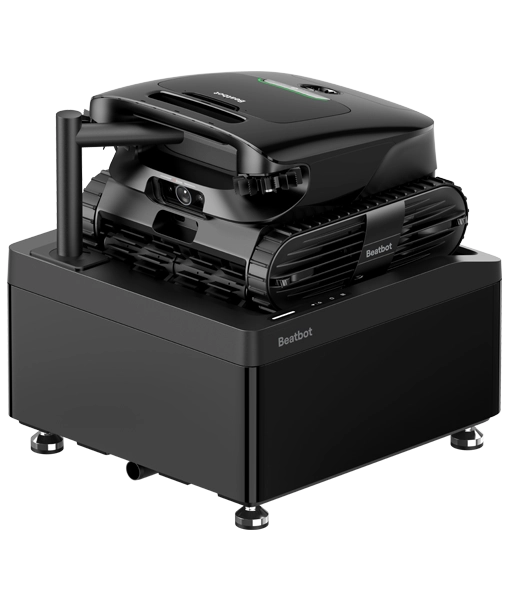


Beatbot AquaSense X AI-Powered Self-Cleaning Pool Robot
Product overview
The Beatbot AquaSense X is the world’s first AI powered pool robot with automatic cleaning station, simply dock the cleaner and the filter is backwashed and emptied in just three minutes, plus the integral 22L dustbin gives you up to two months debris capacity.
Advanced AI debris detection and automatic retargeting are available in most modes, meaning you get a clean sweep every time. The AI camera and Ultrasonic and Infrared sensors map your pool with exceptional accuracy to ensure every inch is cleaned, including the water surface and even the water itself with the eco-friendly clear water clarification.
- AI camera and 29 sensors, for precise navigation, obstacle detection and efficient path planning, plus recognition of 40 types of debris
- Cleaning station automatically empties the filter basket, flushing debris into the 22L bin, giving you up to two months of cleaning before it needs emptying
- Huge 13,400mAh capacity battery provides up to 5 hours of continuous floor cleaning, or 10 hours of continuous surface cleaning on a single charge
- Automatically returns to the surface when cleaning is complete or the battery is low, and drains trapped water at the end of every cycle so there is no more heavy lifting
- 11 motors and 7 brushes give more scrubbing power and a deeper clean, while side guide wheels help navigate corners and hard to reach areas
- With the Beatbot App and voice control from Siri, Alexa and Google Home you can select additional cleaning modes and pool edge parking, track cleaning cycles and stay up to date with software updates, plus register for your three year warranty
- Cleans floor, walls, waterline and surface plus upgraded motion stability helps to climb any pool surface, and scrubs the waterline twice during each pass
- Water clarifier uses natural agents to bind dirt, oils and residue for better filtration, one kit included with replacements available separately
Buttons & lighting effectsRobotCleaning stationTap the button and explore the controls
Buttons & lighting effects
Robot
Cleaning station
Click the power button to begin
Floor ModeSingle press selects floor cleaningLonger press (3 secs) activates clarifier
Standard ModeSingle press selects floor, walls and waterline cleaningLonger press (3 secs) pairs with the cleaning station
PowerShort press powers onLonger press powers off
Pro ModeSingle press selects floor, walls, waterline and surface cleaningLonger press (3 secs) manual draining (shows battery status)
Custom ModeSingle press selects custom cleaning (area and duration must be set in Beatbot App)
Self-CleanSingle press starts or ends self-cleaningLonger press (3 secs) pairs with the robot
FunctionShort press (3 secs) temporarily disables child lockLonger press (10 secs) manual draining of station
Wi-Fi signalSolid blue, strong network signalSolid yellow, weak network signalFlashing orange, connection failed (reconnect in the Beatbot App)
Solid greenBattery is charged
Breathing lightBattery is charging (orange, yellow or green shows the charge level)
Flashing whitePairing the robot and cleaning station
Flashing blueConnecting to Wi-Fi or updating firmware (for Wi-Fi setup, press and hold Power + Floor Mode for 3 secs)
Breathing sky blueSelf-cleaning (takes around 3 minutes)
Flashing orangeFault (please contact us, cleaners connected to the Beatbot app can be diagnosed remotely)
Quick start guide
In the box
- Beatbot AquaSense X
- AstroRinse cleaning station
- 1 x Clarifying agent kit
- 2 x Side brushes
- Spray nozzle assembly and nozzle protector
- Inlet hose / Drain hose
- 3-way connector / hose clamp / PTFE tape / 6 x M5 screws
- Levelling foot wrench / Hex key
- Hook
- User Manual
Fit the side brushes
- Take the two side brushes out of the box.
- Hook one end of a brush onto the round brush holder at the front corner of the robot.
- Wrap the brush around the holder and hook the other end on.
- Check both brushes are firmly attached and turn freely.
Set up the cleaning station
- Place the station on flat, stable ground close to a power socket and tap, with a good Wi-Fi signal, space behind it for the hoses and out of direct sunlight.
- Press the side cover to open it, take the accessories out of the station’s basket, then refit the basket and close the cover.
- Pull off the rear cover, connect the inlet hose to the station and to the tap (fit the 3-way connector first if you still want to use the tap), then fit the drain hose with the hose clamp.
- Turn the tap on slowly and check every connection for leaks for at least 60 seconds. If a joint leaks, reseal it with the PTFE tape.
- Check the bubble level and adjust the feet with the wrench until the bubble sits inside the circle, then route the power cord out and click the rear cover back on.
Full installation instructions are in the user manual.
Power up and run the self-check
- Plug the station in and it switches on by itself, with the status light breathing white.
- Make sure the robot isn’t on the station and that nothing is in the way of the spray nozzle.
- Briefly press Self-Clean to start the self-check. The spray nozzle and levers will move on their own, so keep clear.
- The self-check is complete when the status light turns solid white. If it fails, the station will say why, and there’s help in the FAQ section of the Beatbot app.
Charge the robot
- Hold the robot by its handle, line it up with the locating pins and charging contacts on the station, then lower it gently into place.
- A breathing light shows it’s charging. A full charge takes around 4.5 hours, and the light turns solid green when it’s ready.
- The robot is only partly charged for shipping, so give it a full charge before its first clean.
Pair the robot and station
- Switch the robot on and keep it within a metre of the station.
- Hold Standard Mode on the robot for 3 seconds, until its light flashes white.
- Hold Self-Clean on the station for 3 seconds, until its light flashes white.
- The station will say “Pairing successful”. If it says pairing failed, repeat steps 2 and 3.
Connect to the Beatbot app
- Download the Beatbot app from the App Store or Google Play.
- With the robot paired and within a metre of the station, and your phone on the same Wi-Fi, hold Power and Floor Mode together for 3 seconds, until the light flashes blue.
- In the app, tap Add Robot and it will find the robot by Bluetooth, or tap Scan to Add and scan the QR code on the robot. Then follow the app, and don’t forget to register your warranty while you’re there.
- The station then connects to Wi-Fi by itself within about 30 seconds. Its Wi-Fi light shows solid blue for a strong signal or solid yellow for a weak one. If it flashes orange, set up the station in the app’s Station tab.
Start a clean
- Check the robot is charged, the light should be solid green.
- Press a mode button on the robot, or choose a mode in the app, and the button lights solid white.
- Lower the robot gently into the water next to the pool wall.
- The robot settles on the pool floor within about 3 minutes and starts cleaning on its own.
Lift the robot out and self-clean
- When the robot has finished, it will park at the edge of the pool. If the robot doesn’t come back to the edge, lift it out with the hook.
- Lift the robot out gently by the handle.
- Sit the robot on the station and self-cleaning starts on its own, taking around 3 minutes. Don’t move the robot or the spray nozzle, or open either cover, while it’s running.
- When self-cleaning has finished, the robot starts charging on its own, ready for next time.
Empty the station’s bin
- Unplug the station.
- Press the side cover to open it and pull out the filter basket.
- Empty the debris and rinse the basket, then slide it back in and press the side cover until it clicks shut.
- Every so often, rinse any mud, sand or leaves off the station platform and check the drainage holes on either side are clear. Clear any hair or sand from the robot’s propellers (pull off the propeller lid to reach them) and brushes, and give the sensors a wipe.
Fit the clarifier (optional)
- Open the clarifier kit, remove the cap and peel off the foil.
- Open the clarifier cover on the robot, press the kit into place with the opening facing down until it clicks, then close the cover.
- Press and hold Floor Mode for 3 secs to activate the clarifier, the light will turn purple, the cleaner will automatically dispense the clarifier during its cycle. Press and hold again to deactivate the clarifier.
FAQs
Should the pool pump be running while the robot is cleaning?
For the best results turn your filtration equipment off while the robot is cleaning, the currents created by the pump can interfere with the robot’s movement and stop it covering the whole pool.
Can we swim while the robot is cleaning?
No, please stay out of the pool until the robot has finished, then you can enjoy the pool knowing it’s been cleaned.
What should I do before the first clean of the season?
After winter it’s worth removing any larger debris such as leaves by hand first, this stops the filter basket filling up too quickly and lets the robot get on with the fine cleaning.
Why does the robot take a few minutes to sink?
When the robot is placed into the water the air from inside will need to be expelled, so please allow around 3 minutes and the cleaner will then settle on the floor and start its cycle.
Why does the robot make a noise before and after cleaning?
This is perfectly normal, the noise before each cycle is the robot expelling trapped air and afterwards the cleaner takes around 3 minutes to expel the trapped water, saving you from lifting a heavy, water-filled cleaner.
Why does the app lose connection while the robot is cleaning?
Wi-Fi can’t travel through water, so the robot will drop out of the app while it’s under the surface, once it surfaces it reconnects automatically and updates the app with its cleaning data.
The robot has stopped or is barely moving, what should I check?
In the rare instance the cleaner stops moving, check for obstructions such as a drain cover, make sure the filter basket isn’t full and that the pool pump is switched off. If the robot hasn’t freed itself after a few minutes, use the hook to lift it clear and it will carry on cleaning.
The robot won’t charge, what should I check?
Make sure the station is plugged in, the robot is sitting on the locating pins correctly, and the charging contacts are clean. The robot will only charge between 0 and 40°C, in cold weather please do not charge the robot outside or in unheated outhouses.
Why is the robot showing offline in the app?
This is normally due to a weak Wi-Fi signal, the battery needing charging, the robot being linked to another account or a change to your router’s name or password. If the robot stays offline, reset its Wi-Fi and reconnect it to the app.
Will the robot remove algae?
Robot pool cleaners will not fully remove algae from your pool, so algae should always be treated and removed manually before using a robot cleaner, please note that cleaners may not move correctly across algae covered surfaces. Used regularly a robot cleaner can help to prevent the regrowth of algae alongside filtration and correct water chemistry.
Does the station clean the robot automatically?
Yes, self-cleaning starts on its own as soon as the robot is placed on the station. You can switch automatic self-cleaning off in the Beatbot app, and start it yourself with a short press of Self-Clean.
What does the child lock do?
The child lock is switched on in the Beatbot app and locks both buttons on the station, so self-cleaning can’t be interrupted by accident. To disable it temporarily, press and hold Function for 3 secs.
Do I have to use the clarifier?
No, the clarifier is optional, it is designed to help remove unseen oils from makeup and sun cream in the water and is only dispensed when you activate it, by pressing and holding Floor Mode for 3 secs. Once a kit is opened it should be replaced within 30 days even if it’s not used up, so it’s worth only opening one when you’re ready to use it, replacement kits are available separately.
How should I store the robot over winter?
Before temperatures drop below 5°C, drain the robot by pressing and holding Pro Mode for 3 secs, which takes around 3 minutes. Turn off the tap, disconnect the inlet hose from it and point the hose down to drain, then press and hold Function on the station for 10 secs to drain the station, which takes around 10 minutes. Switch the robot off, unplug the station, disconnect both hoses so they can’t freeze and crack, and put them in the station’s basket. Then sit the robot on the station and store both indoors somewhere dry and frost-free.
Do I need to register the robot for the warranty?
Yes, the three year full replacement warranty requires the cleaner to be registered, please download and connect to the Beatbot app to register your robot, being connected also allows faults to be diagnosed remotely and additional cleaning modes to be selected.
Specifications
| Pool size | Up to 360m² (floor) |
|---|---|
| Surfaces | Floor, walls, waterline and surface |
| Sensors | AI camera + 29 sensors |
| Cycle time | 5 hours (floor or walls & waterline) / 10 hours (surface) |
| Cable | Cordless |
| Brushes | 4 x bottom (2 x 2) / 1 x front / 2 x side |
| Weight | 13.06kg (robot) / 13.8kg (station) |
| Motors | 11 |
| Battery | Lithium-ion 13,400mAh |
| Filtration | Robot 5L (150 μm) / Station bin 22L |
| Charging | Approx. 4.5h, quick 88W charging |
| Charger output | 28V / 3A |
| Connectivity | Wi-Fi (2.4/5GHz) + Bluetooth (Beatbot App) |
| Protection | IP68 (robot) / IPX6 (station) |
| Warranty | 3 years full replacement |
Compatibility
| Maximum pool size | Up to 360m² (floor) |
|---|---|
| Minimum depth | 35cm |
| In-ground pools | Yes |
| Above-ground pools | Rigid sides only |
| Wooden pools | Yes |
| Liner pools | Yes |
| Rough tiled pools | Yes |
| Fibreglass pools | Yes |
| Coated concrete pools | Yes |
| Smooth tiled pools | Yes |
| Chlorine | Max 4 ppm / NaCl max 5000 ppm |
| pH | 7.0 – 7.8 |
| Water temperature | 6 – 35°C |
Documents
Three years full replacement warranty, requires the cleaner to be registered and connected to the Beatbot App